Introduction
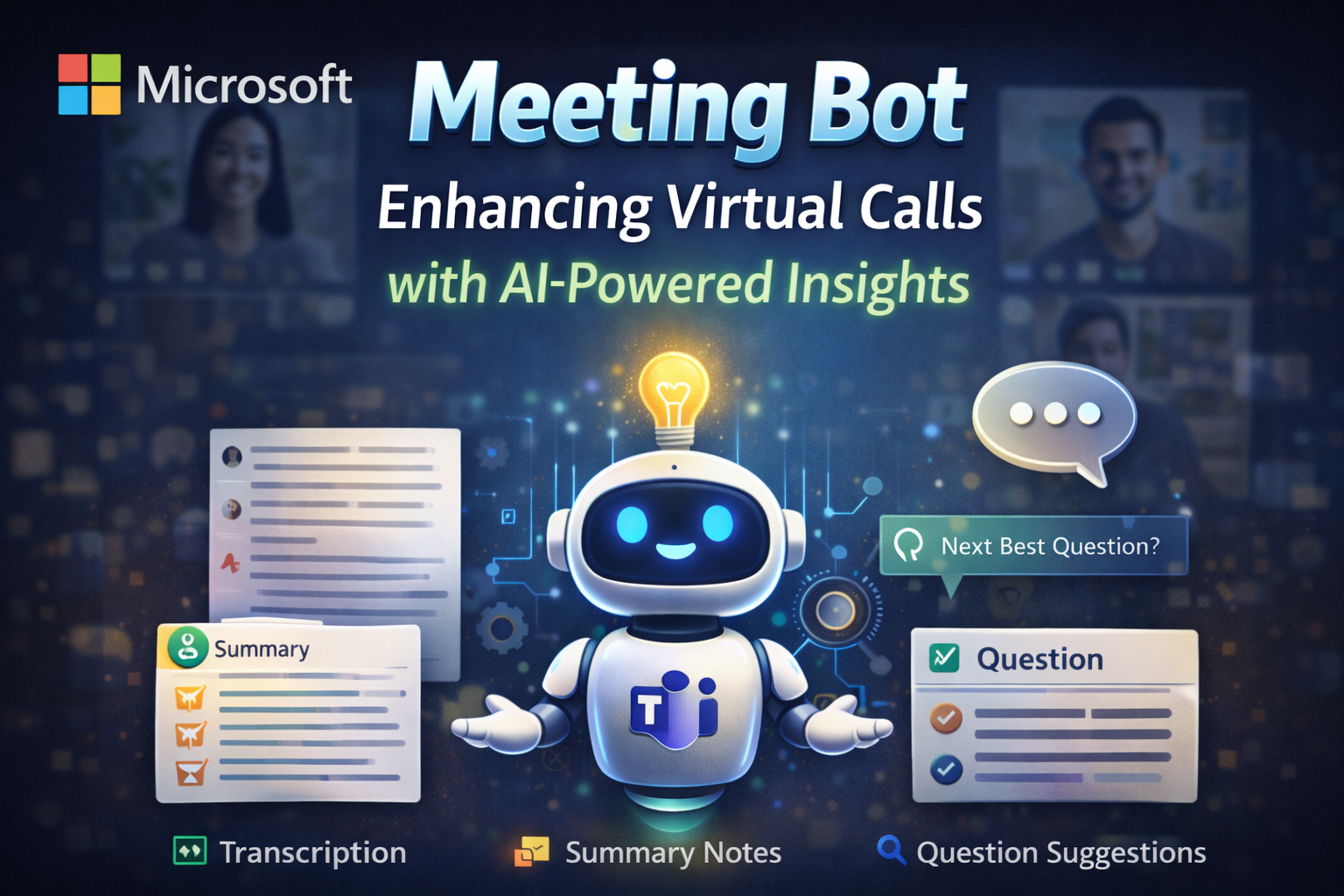
In today's fast-paced digital world, virtual meetings have become an essential part of both professional and personal interactions. While platforms like Microsoft Teams facilitate seamless communication, extracting valuable insights, ensuring meeting efficiency, and providing real-time assistance remain key challenges. This is where the Microsoft Teams Meeting Bot — an advanced AI note taker for Teams — can make a significant difference.
While we'll use an interview scenario as an example, this bot is designed to assist in a wide range of meetings — whether business, educational, or collaborative. The core functionality of the bot is its ability to join meetings (not just calls), capture live transcriptions of the ongoing conversation, and analyze the data in real-time. As a Microsoft Teams note taker, it automatically generates meeting notes in Microsoft Teams, creates meeting minutes in Microsoft Teams, and provides Microsoft Teams meeting summaries that help guide the conversation, enhance decision-making, and improve meeting outcomes.
In the interview example, the bot helps the interviewer by generating next best questions, but in other use cases, it could suggest agenda points, highlight important decisions, or even create follow-up tasks based on the discussion. This makes it one of the best Microsoft Teams apps for meeting notes available today.
Why Use the Microsoft Teams Meeting Bot?
1. Real-Time Insights
The bot provides contextually relevant suggestions during the meeting, allowing participants to stay focused and make informed decisions. As an MS Teams AI note taker, it automatically captures meeting notes in MS Teams and generates meeting minutes MS Teams participants can reference later. In interviews, it helps interviewers ask the right questions. In a brainstorming session, it can suggest ideas or track action items. The bot acts as a Microsoft Teams minute taking assistant and ensures structured meeting minutes in MS Teams for all participants.
2. Increased Efficiency
The bot automates transcription, question generation, and analysis, allowing participants to focus on the meeting's content. Whether it's tracking conversations in a legal discussion or monitoring key points during a client call, it ensures that nothing is overlooked. The Microsoft Teams meeting notes feature ensures comprehensive documentation without manual effort. This also benefits organizations that rely heavily on Microsoft Teams note taking workflows or need Microsoft Teams meeting notes taker automation.
3. Improved Collaboration
The bot can enhance the collaboration process in meetings by providing real-time feedback, suggestions, or insights that participants may miss in the heat of discussion. With Microsoft Teams share meeting notes capabilities, all participants can access the generated meeting notes Microsoft Teams format. This is particularly useful in team meetings where multiple voices and ideas need to be synthesized. Teams that frequently ask how to share meeting notes in Microsoft Teams will find the bot's Microsoft Teams share meeting notes function extremely helpful.
4. AI-Driven Decision Making
By analyzing the conversation in real-time, the bot ensures that the meeting remains aligned with its objectives, whether it's a job interview, a product demo, or a client negotiation. The Microsoft Teams meeting summary feature provides concise overviews, making the process data-driven and objective. It also produces a Microsoft Teams meeting summary that simplifies follow-up and documentation across departments.
What We'll Build
The solution consists of two main components: MS Teams Bot (.NET service) and a Backend API (Node.js/Express). These components work together to provide seamless integration with Microsoft Teams, real-time transcription, and AI-powered insights for Microsoft Teams note taking. Together, they deliver end-to-end support for meeting minutes Microsoft Teams workflows, MS Teams meeting minutes automation, and consistent meeting notes MS Teams documentation.
1. MS Teams Bot (.NET Service)
This component handles the integration with Microsoft Teams and the real-time processing of the conversation:
- Meeting Integration: The bot uses Microsoft Graph API to join meetings and actively participate in the conversation.
- Audio Processing & Speech Recognition: The bot integrates with Azure Speech Services to transcribe audio in real-time while identifying and tagging participants, enabling accurate meeting minutes in Microsoft Teams.
- Media Management: Tracks participants and manages audio/video streams to ensure proper transcription and analysis for Microsoft Teams meeting minutes.
2. Backend API (Node.js/Express)
This handles the processing of transcription data, question generation, and communication between the bot and Microsoft Teams:
- AI Processing: The backend uses OpenAI GPT models to analyze the conversation and generate contextually relevant insights, action items, or follow-up questions.
- Question/Insight Generation: Based on the conversation, the AI generates insights or action items, ensuring the meeting stays productive.
- Teams Messaging: The AI-generated insights or questions are sent to the relevant participants as private messages, ensuring the conversation remains smooth and focused.
- Conversation Management: Coordinates interactions between the bot, Teams, and the backend to ensure smooth communication.
Key Features
- Real-Time Transcription: Captures the entire conversation, tagging each participant's speech and preserving the context for later analysis.
- AI-Powered Conversation Analysis: The bot analyzes ongoing discussions, whether it's generating follow-up questions in an interview or suggesting action items in a team meeting.
- Intelligent Suggestion Generation: The bot generates follow-up questions or insights, keeping the conversation focused and dynamic.
- Privacy Protection: Any generated content, such as questions or tasks, is sent privately to the interviewer or relevant participant, maintaining confidentiality.
- Multi-Participant Support: The bot tracks and identifies all participants, ensuring that transcription and analysis are accurate for each individual.
- Automated Meeting Minutes: Generates comprehensive meeting minutes in MS Teams automatically, eliminating the need for manual note-taking. This ensures clean and accurate meeting minutes in Microsoft Teams or MS Teams, even in large multi-participant sessions.
- Meeting Notes App Microsoft Teams: Functions as a complete meeting notes app Microsoft Teams solution with AI-powered summarization. Users searching for meeting notes app Microsoft Teams or looking to take meeting notes MS Teams automatically can rely on the bot's AI-driven system.
- Robust Error Handling: The bot includes error recovery mechanisms to ensure smooth operation, even in the event of interruptions or failures.
Prerequisites
Before implementing the Microsoft Teams Meeting Bot, ensure the following are in place:
Azure Resources
- Azure Subscription with Admin Access: Required to access and configure Azure services.
- Azure Active Directory Tenant with Admin Permissions: Essential for authentication and managing permissions.
- Azure Speech Service Resource: Used for real-time transcription.
- SSL Certificate (CA-Signed): Needed for secure communication.
Teams Requirements
- Microsoft Teams Admin Access: Required to manage bot registration and permissions.
- Bot Registration Permissions: Required for bot registration with Teams.
- Teams Developer Account: Needed for testing and deployment.
- Domain and SSL Configuration: A public domain and valid SSL certificate are necessary for the bot's operations.
Azure Setup
Organizations implementing Microsoft meeting notes or advanced Microsoft Teams note taking features must configure these prerequisites properly.
Step 1: Create Azure Active Directory Application
- Navigate to Azure Portal: Go to Azure Active Directory and click App registrations.
- Register New Application: Register the bot, set the redirect URI, and assign the necessary permissions.
- Generate Client Secret: Create a new client secret for authentication and save the secret.
Step 2: Create Azure Speech Service
- Create Speech Service Resource: Create a new Speech Service resource for audio transcription.
- Get Speech Service Keys: Copy the key and region details for later use.
Step 3: SSL Certificate Setup
- Obtain SSL Certificate: Purchase a CA-signed SSL certificate for the bot's domain.
- Install Certificate: Install the SSL certificate on the server hosting the bot.
Bot Development
Step 1: Create the Project
Create New Project: Use the command dotnet new worker -n TeamsInterviewBot to create a new project.
dotnet new worker -n TeamsInterviewBot
cd TeamsInterviewBot
Install Required Packages: Install packages for Microsoft Graph, Speech Services, and AI processing.
<PackageReference Include="Microsoft.Graph.Communications.Calls.Media" Version="1.2.0.10563" />
<PackageReference Include="Microsoft.Skype.Bots.Media" Version="1.27.0.2-alpha" />
<PackageReference Include="Microsoft.CognitiveServices.Speech" Version="1.40.0" />
<PackageReference Include="Microsoft.Extensions.Hosting" Version="8.0.0" />
Step 2: Configure appsettings.json
Your appsettings.json file will include essential configurations, including service names, keys, and SSL certificates for secure communications.
{
  "Logging": {
    "LogLevel": {
      "Default": "Information",
      "Microsoft.Hosting.Lifetime": "Information",
      "Microsoft": "Warning"
    }
  },
  "AppSettings": {
    "ServiceDnsName": "yourdomain.com",
    "MediaDnsName": "yourdomain.com",
    "AadAppId": "{Your AadAppId key}",
    "AadAppSecret": "{Your AadAppSecret key}",
    "CertificateThumbprint": "{Your CertificateThumbprint key}",
    "SpeechConfigKey": "{Your SpeechConfigKey}",
    "SpeechConfigRegion": "eastus",
    "BotLanguage": "en-US",
    "SaveAudioFiles": true,
    "AudioFilesDirectory": "AudioFiles",
    "TranscriptionDirectory": "Transcriptions",
    "TranscriptionApiUrl": "{Your server URL }"
  }
}
Step 3: Core Implementation
3.1 Bot Bootstrap and Service Setup
Set up the bot as a Windows Service:
IHost host = Host.CreateDefaultBuilder(args)
    .UseWindowsService(options =>
    {
        options.ServiceName = "Teams Bot Service";
    })
    .ConfigureServices(services =>
    {
        services.AddSingleton<IBotHost, BotHost>();
        services.AddHostedService<BotWorker>();
    })
    .Build();

await host.RunAsync();
3.2 Authentication and Graph Token Acquisition
Implement authentication using client credentials flow:
// AuthenticationProvider.cs
public async Task AuthenticateOutboundRequestAsync(
    HttpRequestMessage request, string tenant)
{
    var app = ConfidentialClientApplicationBuilder
        .Create(appId)
        .WithAuthority($"https://login.microsoftonline.com/{tenant}")
        .WithClientSecret(appSecret)
        .Build();

    var result = await app.AcquireTokenForClient(
        new[] { "https://graph.microsoft.com/.default" })
        .ExecuteAsync();

    request.Headers.Authorization =
        new AuthenticationHeaderValue("Bearer", result.AccessToken);
}
Challenges and Issues Faced
Bot Type Confusion
There was initial confusion between using an Azure Bot and a Teams Bot. We clarified that the Azure Bot handles audio processing and meeting joins, while the Teams Bot is used for proactive messaging and question delivery.
Audio Chunk Capture Failure
After the bot successfully joined the meeting, it failed to capture audio chunks. This issue was traced to the SSL certificate. A CA-signed certificate resolved the problem, allowing the bot to capture audio.
Bot Visibility Issues
The bot wasn't visible in the participant list initially. After ensuring the proper SSL certificate installation, the bot appeared in the meeting as expected.
Participant-Wise Transcription
Audio streams were initially mixed, preventing accurate participant-wise transcription. By using Azure Communication Services (ACS), we were able to separate audio streams and associate them with individual participants. This improvement is essential for generating reliable Microsoft Teams meeting notes or structured meeting minutes in MS Teams.
Solution Flow
3.1 Bot Meeting Join Process
- Initial Request: The backend API triggers the bot with the meeting URL.
- Authentication: The bot authenticates using Azure AD, and Microsoft Graph API issues the access token.
- Meeting URL Parsing: Extracts
ChatInfoandMeetingInfofor the bot to join. - Media Session Creation: Sets up the audio socket (PCM 16kHz,
Sendrecv). - Guest Identity Setup: Bot creates a unique identity with tenant-specific information.
- Meeting Join Attempt: Bot joins the meeting via Microsoft Graph API.
- Join Confirmation: Bot appears in the participant list, and the call state transitions to
Established. - Call State Monitoring: Continuously monitors the call for participant joins/leaves and events.
// BotService.cs
public async Task<ICall> JoinCallAsync(JoinCallBody joinCallBody)
{
    // Step 1: Parse meeting URL to extract ChatInfo and MeetingInfo
    var (chatInfo, meetingInfo) = JoinInfo.ParseJoinURL(joinCallBody.JoinUrl);

    // Step 2: Extract tenant ID from meeting info
    var tenantId = (meetingInfo as OrganizerMeetingInfo)?
        .Organizer?.GetPrimaryIdentity()?.GetTenantId();

    // Step 3: Create media session with PCM 16kHz audio
    var mediaSession = this.Client.CreateMediaSession(
        new AudioSocketSettings
        {
            StreamDirections = StreamDirection.Sendrecv,
            SupportedAudioFormat = AudioFormat.Pcm16K,
            ReceiveUnmixedMeetingAudio = false
        },
        new VideoSocketSettings
        {
            StreamDirections = StreamDirection.Inactive
        });

    // Step 4: Create guest identity
    var guestIdentity = new Identity
    {
        Id = Guid.NewGuid().ToString(),
        DisplayName = joinCallBody.DisplayName ?? "Audio Bot"
    };

    // Step 5: Create join parameters
    var joinParams = new JoinMeetingParameters(chatInfo, meetingInfo, mediaSession)
    {
        TenantId = tenantId,
        GuestIdentity = guestIdentity
    };

    // Step 6: Join meeting via Microsoft Graph API
    var scenarioId = Guid.NewGuid();
    var call = await this.Client.Calls()
        .AddAsync(joinParams, scenarioId)
        .ConfigureAwait(false);

    // Step 7: Call state transitions to Established
    // Step 8: Event handlers monitor call state and participants
    // (Handled by CallsOnUpdated and CallOnUpdated event handlers)

    return call;
}

// Event handler for call state monitoring
private void CallsOnUpdated(ICallCollection sender, CollectionEventArgs<ICall> args)
{
    foreach (var call in args.AddedResources)
    {
        if (call.Resource.State == CallState.Established)
        {
            // Bot successfully joined - create call handler
            var callHandler = new CallHandler(call, _settings, _logger);
            this.CallHandlers[call.Resource.ChatInfo.ThreadId] = callHandler;
        }
    }
}
3.2 Audio Capture and Processing
- Audio Stream Activation: Receives real-time audio from all participants.
- Participant Tracking: Tracks joins/leaves and associates audio with participants.
- Audio Processing: Converts the audio to text for transcription and manages the stream lifecycle.
// BotMediaStream.cs - Audio Capture and Processing

// Step 1: Audio Stream Activation - Subscribe to audio events
public BotMediaStream(ILocalMediaSession mediaSession, string callId, ILogger logger, AppSettings settings)
{
    this._audioSocket = mediaSession.AudioSocket;
    this._audioSocket.AudioMediaReceived += this.OnAudioMediaReceived;  // Subscribe to real-time audio

    // Initialize Speech Service for transcription
    if (settings.UseSpeechService)
    {
        _languageService = new SpeechService(settings, logger);
    }
}

// Step 2: Participant Tracking - Update participant roster
// CallHandler.cs
public void ParticipantsOnUpdated(IParticipantCollection sender, CollectionEventArgs<IParticipant> args)
{
    if (args.AddedResources.Count > 0)
    {
        _logger.LogInformation($"{args.AddedResources.Count} participant(s) JOINED");
        updateParticipants(args.AddedResources);
    }

    if (args.RemovedResources.Count > 0)
    {
        _logger.LogInformation($"{args.RemovedResources.Count} participant(s) LEFT");
        updateParticipants(args.RemovedResources, false);
    }

    // Update participant tracking for speaker attribution
    this.BotMediaStream.UpdateParticipantsInSpeechService();
}
// Audio Processing - Receive and process audio streams
private async void OnAudioMediaReceived(object? sender, AudioMediaReceivedEventArgs e)
{
// Extract audio buffer
var buffer = new byte[e.Buffer.Length];
Marshal.Copy(e.Buffer.Data, buffer, 0, (int)e.Buffer.Length);
// Detect speaker using participant status
var currentSpeaker = DetectCurrentSpeaker();
// Set participant context for transcription
if (!string.IsNullOrEmpty(currentSpeaker))
{
_languageService.SetCurrentParticipant("MixedAudio", currentSpeaker);
}
// Send to Speech Service for real-time transcription
var audioMediaBuffer = new AudioSendBuffer(/* ... */);
await _languageService.AppendAudioBuffer(audioMediaBuffer);
}
// SpeechService.cs - Convert audio to text
public async Task AppendAudioBuffer(AudioMediaBuffer audioBuffer)
{
if (!_isRunning)
{
await ProcessSpeech(); // Start continuous recognition
}
// Write audio to Speech Service input stream
var buffer = new byte[audioBuffer.Length];
Marshal.Copy(audioBuffer.Data, buffer, 0, (int)audioBuffer.Length);
_audioInputStream.Write(buffer); // Streams to Azure Speech Service
}3.3 Transcription and AI Processing
- Speech-to-Text Conversion: Uses Azure Speech Service to convert audio to text.
- Transcription Data Preparation: Formats transcription with timestamps and participant info.
- Backend Communication: Sends the transcription to the backend for analysis.
- AI Question Generation: Backend generates 5 contextually relevant questions based on the JD, skills, and conversation.
// SpeechService.cs - Transcription and AI Processing

// Step 1: Speech-to-Text Conversion - Configure Azure Speech Service
var speechConfig = SpeechConfig.FromSubscription(
    settings.SpeechConfigKey,
    settings.SpeechConfigRegion);
speechConfig.SpeechRecognitionLanguage = settings.BotLanguage;

var recognizer = new SpeechRecognizer(speechConfig, audioInput);

// Step 2: Transcription Data Preparation - Format with timestamps and participant info
recognizer.Recognized += async (s, e) =>
{
    if (e.Result.Reason == ResultReason.RecognizedSpeech)
    {
        var timestamp = DateTime.UtcNow.ToString("HH:mm:ss.fff");
        var participantInfo = GetCurrentParticipantInfo();  // Get estimated speaker

        // Format transcription with timestamp and participant
        var transcriptionLine = $"[{timestamp}] [{participantInfo}] {e.Result.Text}";

        // Save to buffer
        lock (_transcriptionLock)
        {
            _transcriptionBuffer.AppendLine(transcriptionLine);
        }

        // Step 3: Backend Communication - Send to backend API for AI analysis
        await SendToBackendAPI(e.Result.Text, participantInfo);
    }
};

await recognizer.StartContinuousRecognitionAsync();

// Step 3: Send transcription to backend
private async Task SendToBackendAPI(string text, string participant)
{
    using var httpClient = new HttpClient();

    // Prepare payload with transcription and participant info
    var payload = new
    {
        text = text,
        participant = participant,
        participantId = _currentParticipantId,
        timestamp = DateTime.UtcNow
    };

    var content = new StringContent(
        JsonSerializer.Serialize(payload),
        Encoding.UTF8,
        "application/json");
}
3.4 Proactive Messaging
- Message Preparation: AI-generated questions are formatted into Teams message structure.
- Teams Delivery: Questions are sent via the Teams Bot as private messages.
- Message Receipt: The interviewer receives the suggestions in real-time.
Contact Us
At W3villa Technologies, we specialize in developing intelligent, scalable, and secure Microsoft Teams Meeting Bots tailored to your organizational needs. Whether you're aiming to automate interview processes, enhance team collaboration, or integrate AI-driven insights into your meetings, our team is equipped to bring your vision to life. Our solutions support all major use cases, including Microsoft Teams AI notetaker requests, MS Teams meeting minutes automation, and enterprise-grade meeting notes Microsoft Teams integration.
Why Partner with W3villa?
- Expertise in Microsoft Teams Integration: Our developers have extensive experience in integrating bots with Microsoft Teams, ensuring seamless communication and functionality.
- Proficiency in Ruby on Rails (RoR): We leverage RoR to build robust backend systems that support real-time transcription, AI analysis, and proactive messaging within Teams.
- Comprehensive AI Solutions: From speech recognition to natural language processing, we utilize cutting-edge AI technologies to enhance meeting productivity.
- End-to-End Development Services: From initial consultation to deployment and maintenance, we provide full-cycle development services to ensure your bot operates flawlessly.
Ready to Enhance Your Meetings?
If you're interested in integrating an AI-powered Microsoft Teams Meeting Bot into your organization, we're here to help. Contact us today to discuss your requirements and explore how our solutions can streamline your meeting processes.